> For the complete documentation index, see [llms.txt](https://learn.homedesigns.ai/llms.txt). Markdown versions of documentation pages are available by appending `.md` to page URLs; this page is available as [Markdown](https://learn.homedesigns.ai/6.-fill-spaces.md).
# 6. Fill Spaces
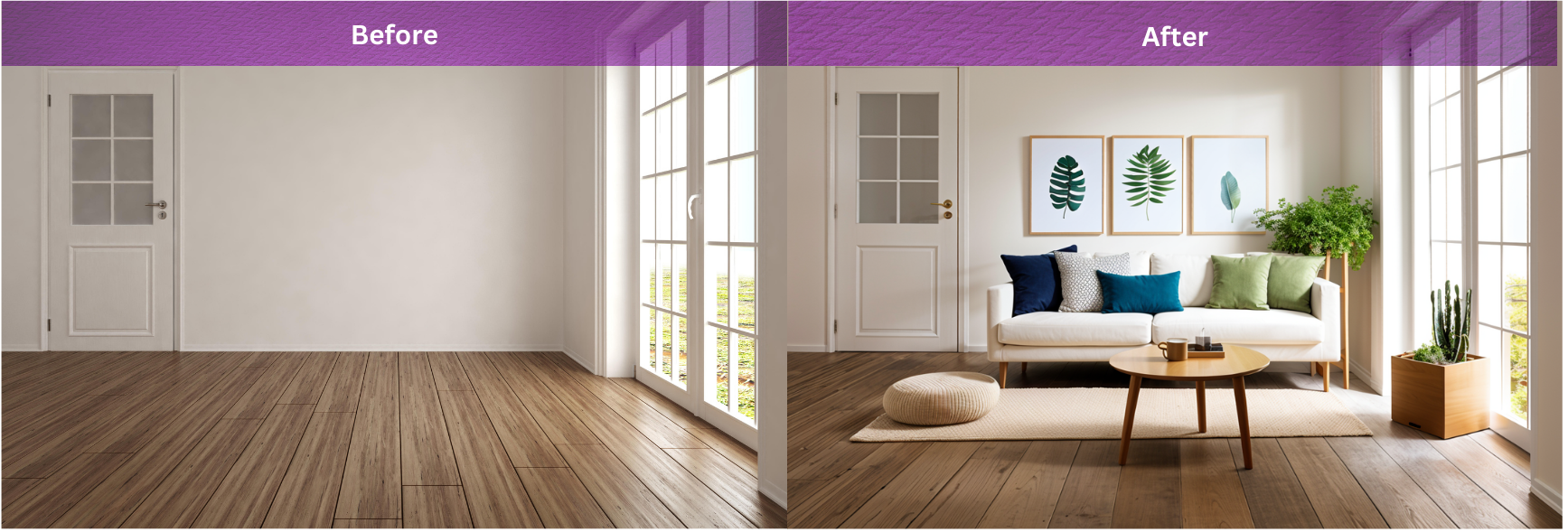
The Fill Spaces tool in HomeDesignsAI was developed to meet the demand for an efficient solution to populate empty rooms, exteriors, and gardens with furniture, decor, and other elements. This versatile tool allows you to quickly and effectively add multiple items, transforming blank spaces into fully realized designs. Whether you’re furnishing a living room, adding outdoor features, or enhancing a garden, Fill Spaces offers a comprehensive approach to virtual staging.
## 6.1 How Fill Spaces Works
### Upload a High-Quality Image:
Begin by uploading a clear, high-resolution photo of the space you wish to fill. A well-lit and detailed image will ensure the best result.
{% hint style="warning" %} Note: Ensure that your photo meets the following requirements: a minimum resolution of 512x512 pixels and a maximum file size of 5 MB.
{% endhint %}
### AI Object Identification:
After the image is uploaded, our AI automatically scans and identifies objects and areas within the photo, understanding the existing layout to avoid overlapping with structural elements.
### Select Area for AI Additions:
Automatic Selection: Use the AI’s automated selection to quickly outline areas based on object identification, allowing for fast and efficient setup.
Manual Selection: Use brush tools to manually select the specific areas where you want to add furniture, decor, or other objects. This method provides the highest level of control, ensuring the AI respects architectural features like windows and walls.
Hybrid Selection: Combine both manual and automated selection methods to fine-tune the space for object additions, ensuring complete and accurate coverage of the target area.
### Define Space Context:
Choose whether your space is an interior, exterior, or garden. This helps the AI understand the environment and tailor its object additions appropriately.
### Select Room Type, House Angle, or Garden Layout:
Click “View All” to select from various room types, house angles, or garden layouts. This context ensures the AI provides the most relevant furnishing options for your specific setting.
### Select Design Style:
Explore available design styles by clicking “View All.” Your chosen style will guide the AI in selecting items that match your overall aesthetic vision.
## Add Custom Instructions (Optional):
For more precise customization, click on “Additional Instructions” and specify exactly what you would like to add, such as “Include a modern sectional sofa and a glass coffee table.”
### Choose Number of Designs:
Select the number of designs you want to generate from 1 to 4. Number of generations equals the number of generations used.
### Generate New Designs:
Click “Generate New Designs” to let the AI populate your selected space with the chosen items, transforming it from an empty room to a fully furnished setting.
## 6.2 Key Features
### Bulk Additions:
Quickly add multiple items to furnish entire rooms, outdoor spaces, or gardens, streamlining the staging process.
### Manual and Automatic Selection:
Offers flexibility to define which areas the AI can modify, ensuring that important elements like windows and structural features remain untouched.
### Versatile Applications:
Ideal for a variety of settings, from furnishing interiors and enhancing outdoor areas to decorating gardens with plants and decorative elements.
## 6.3 Tips for Optimal Use
### Avoid Selecting Structural Elements:
When furnishing an empty room, select all areas except for windows and permanent structural elements to maintain architectural integrity.
### Use Manual Brush for Larger Areas:
The manual brush tool is particularly effective for covering large areas quickly, ensuring comprehensive selection without gaps.
### Adjust Brush Settings:
Fine-tune the brush size, shape, and behavior under ‘Manual Selection’ to achieve the most precise control over your selection.
### Toggle Masking Options:
In the manual selection mode, switch between Add Masking (Brush Selection) and Remove Masking (Brush De-Selection) to refine your selected areas accurately.
### Include a ‘Buffer’ Zone:
Add a buffer around selected areas to allow the AI to create realistic shadows and reflections, enhancing the overall realism of the filled space.
### Specify Detailed Preferences:
Use the ‘Additional Instructions’ menu to provide specific preferences for the items you want to add, guiding the AI for more tailored results..
### Post-Generation Adjustments:
After generating the filled space, use the Precision+ toll for any fine-tuning or further modifications by selecting the pen(edit) from your latest designs. Utilize Furniture Removal to eliminate any unwanted items.
### Enhance Clarity:
Use the HD button to improve the resolution of your final designs, ensuring a high-quality, professional look.
## 6.4 Who Benefits from Fill Spaces
### Homeowners & DIY Enthusiasts:
Perfect for those looking to furnish and decorate their homes with ease.
### Architects:
Provides the ability to visualize furnished spaces in design presentations.
### Interior Designers:
Enables quick virtual staging of rooms with various furniture and decor options.
### Realtors:
Enhances property listings by virtually staging empty spaces to highlight their potential.
### Landscapers:
Ideal for adding decorative and functional elements to gardens and outdoor spaces.
.png?alt=media&token=dafaa095-75aa-431c-9928-cfd566ab5aca)
.png?alt=media&token=98506316-9d83-40b2-84d0-8b77bb0126ee)
.png?alt=media&token=5444c3b4-36a6-44d3-9747-d9f0a80ab251)
.png?alt=media&token=f61dcfd7-ce96-4282-a5d2-187076a2c0df)
.png?alt=media&token=7f889569-8699-4419-abe2-9fc07474506e)
.png?alt=media&token=c5452a3a-755e-4f5f-a940-a612712a52be)
.png?alt=media&token=00ec27fc-b01c-40e2-a7da-2a18d0880dd9)
.png?alt=media&token=d6e4a598-9c7c-4080-bdce-526d9ee6b349)